

Web automation integration
Web automation equips Speedwave with a headless Chromium browser instance powered by Microsoft’s official @playwright/mcp server. Claude can navigate complex web applications, inspect dynamic client-rendered DOM trees, execute accessibility tree snapshots, interact with forms, evaluate JavaScript, and capture viewport screenshots. For workflow details, refer to Automated browser testing.
Architecture and headless runtime
Section titled “Architecture and headless runtime”Web automation runs as an unprivileged compose service named speedwave_<project>_mcp_playwright. Because web automation operates directly against target URLs without requiring stored API credentials, no token volumes are attached.
The worker is shared among active skills and plugins, avoiding redundant Chromium processes.
Tool capabilities
Section titled “Tool capabilities”The @playwright/mcp integration provides 21 operations:
| Tool name | Description |
|---|---|
browser_navigate | Navigate the active page to a target URL. |
browser_navigate_back | Traverse backward in browser session history. |
browser_tabs | Enumerate, spawn, switch, or close browser tabs. |
browser_snapshot | Capture the accessibility tree hierarchy of the active page. |
browser_take_screenshot | Capture full-page or viewport screenshots as base64 images. |
browser_console_messages | Retrieve browser console log output. |
browser_network_requests | Inspect HTTP/HTTPS network request streams. |
browser_evaluate | Execute JavaScript expressions within page or element context. |
browser_run_code | Execute Playwright automation code blocks. |
browser_click | Dispatch click events on target DOM elements. |
browser_hover | Dispatch mouse hover events. |
browser_drag | Execute drag-and-drop actions across elements. |
browser_type | Type text strings into input elements. |
browser_press_key | Dispatch specific keyboard keys or key combinations. |
browser_select_option | Select values in HTML dropdown menus. |
browser_fill_form | Populate multiple form fields simultaneously. |
browser_file_upload | Attach local files to HTML file input elements. |
browser_handle_dialog | Accept or dismiss JavaScript alerts and confirmation prompts. |
browser_wait_for | Await element visibility, text rendering, or time delays. |
browser_resize | Modify browser viewport dimensions. |
browser_close | Close the active browser page. |
Screenshots and accessibility dumps are returned directly in tool payloads. Ephemeral browser caches and cookies are wiped on container restart.
To target local development servers running on your workstation, use http://host.docker.internal:<PORT> instead of localhost.
Configuration
Section titled “Configuration”- Enable Beta features in the Speedwave tray menu.
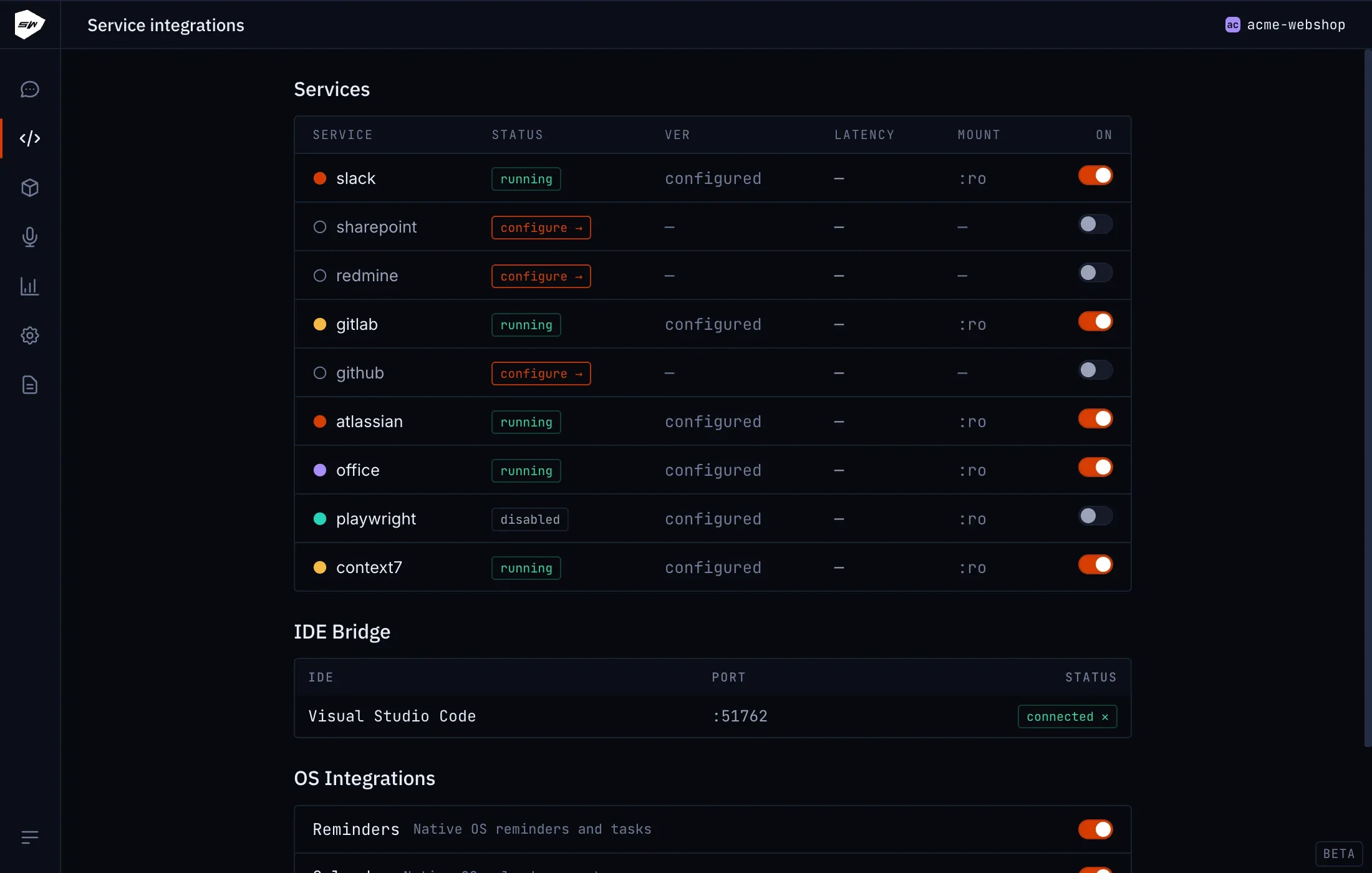
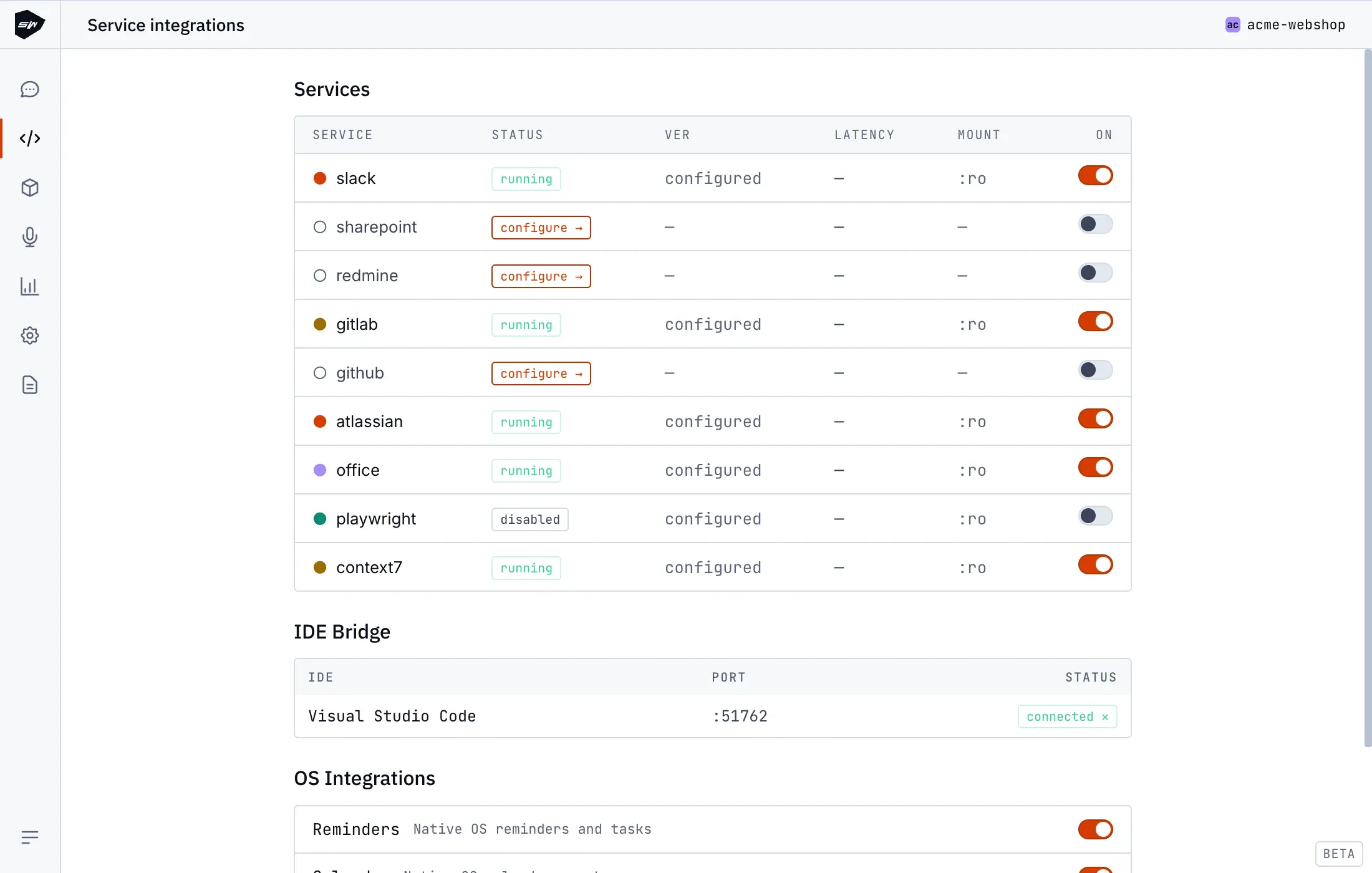
- Toggle Web automation in your project’s integrations dashboard.
- Allow the container runtime to compile the Chromium worker image. Subsequent activations reuse cached image layers.
Security boundaries
Section titled “Security boundaries”The worker container enforces full security sandboxing (cap_drop: ALL, no-new-privileges, read-only root filesystems, noexec,nosuid tmpfs). Chromium sandboxing is delegated to container isolation boundaries. Consult Isolation model for structural security specifications.