

OS integrations (mail, calendar, reminders, notes)
OS integrations allow Speedwave to interact with native desktop applications: Calendar, Reminders, Apple Mail/Outlook, and Notes. Because these APIs reside on the host system, execution is mediated by the local mcp-os host daemon.
Architecture and communication
Section titled “Architecture and communication”While standard workers execute in container sandboxes, mcp-os executes directly on the host machine, binding exclusively to 127.0.0.1. The Tool Gateway routes requests from Claude Code across the container boundary to the host process via host.docker.internal.
On macOS, mcp-os spawns four native Swift CLI helpers utilizing EventKit and Apple Events. No external cloud credentials or API keys are required; authorization is governed directly by macOS Transparency, Consent, and Control (TCC).
Full support for Calendar, Reminders, Mail, and Notes is currently available on macOS 13+.
Windows native host integrations are currently under development.
Tool capabilities
Section titled “Tool capabilities”The integration provides 26 operations across calendar events, tasks, email communication, and documentation notes:
| Tool name | Capability description |
|---|---|
listCalendars | Enumerate local and synchronized calendar accounts. |
listEvents | Query calendar events within a specified date range. |
getEvent | Retrieve specific calendar event metadata by ID. |
createEvent | Schedule new calendar events with alarms and locations. |
updateEvent | Modify existing calendar events. |
deleteEvent | Remove calendar events. |
listReminderLists | List task lists and reminder collections. |
listReminders | Retrieve reminder tasks filtered by list. |
getReminder | Inspect reminder details by ID. |
createReminder | Author new reminders with due dates, priority and tags; a date-only due date makes an all-day reminder. |
updateReminder | Rename, move to another list, reschedule or clear the due date, change priority, notes or tags, and mark done or reopen. |
completeReminder | Mark a reminder task as completed. |
detectMailClients | Identify active email clients (Apple Mail, Outlook). |
listMailboxes | Enumerate configured email accounts and folders. |
listEmails | Query email messages within a mailbox with pagination. |
getEmail | Retrieve full email body and attachment metadata. |
searchEmails | Search email headers and message bodies. |
sendEmail | Send an email message (requires explicit confirmation). |
replyToEmail | Reply to email threads (requires explicit confirmation). |
listNoteFolders | Enumerate note folders and accounts. |
listNotes | Query notes within a designated folder. |
getNote | Retrieve full note text and formatting. |
searchNotes | Search notes by title or content strings. |
createNote | Author new notes in Apple Notes. |
updateNote | Modify existing note contents. |
deleteNote | Permanently remove notes. |
Tool parameters are validated prior to dispatch, and string lengths are bounded to prevent framework crashes. Calendar and Reminders take dates in your local time (2026-06-15 or 2026-06-15T09:00:00); a value with Z or an offset is converted. A calendar or reminder list name that matches more than one of them is rejected with a request for its id instead of silently picking the first match.
Configuration
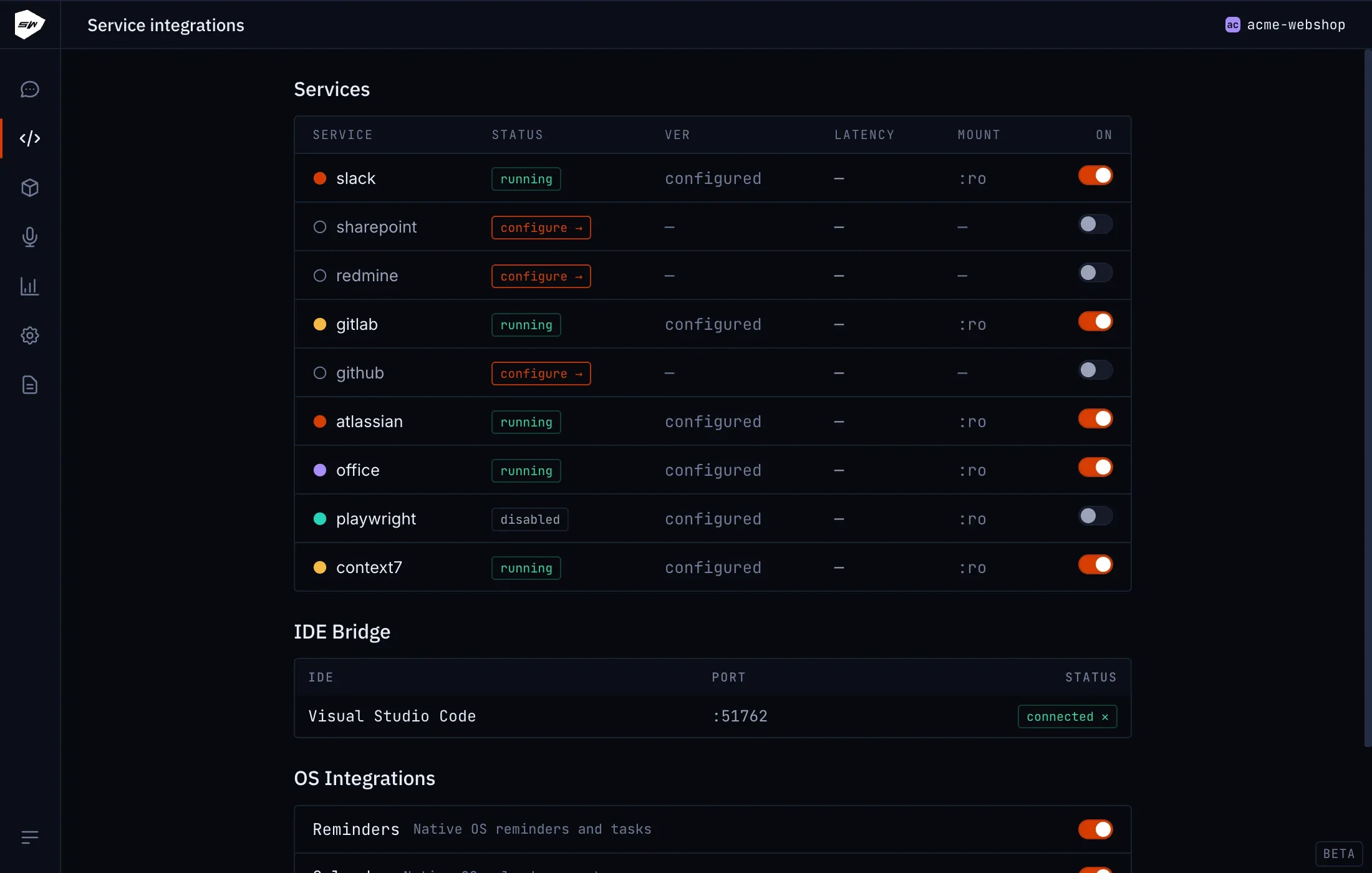
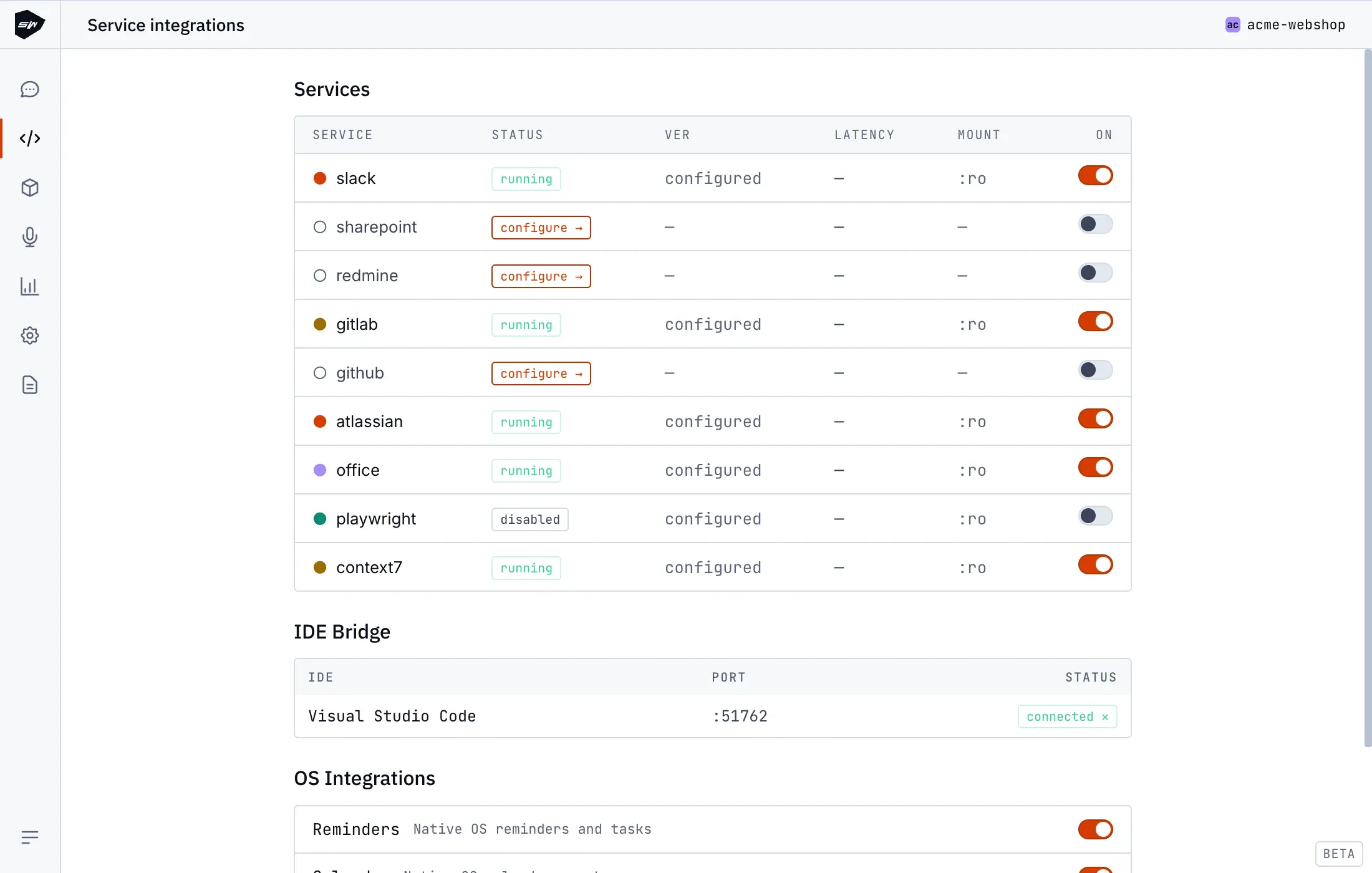
Section titled “Configuration”- Open your project in the Desktop application and navigate to the Integrations view.
- Toggle the desired native integration: Reminders, Calendar, Mail, or Notes.
- Authorize the macOS system permission dialog when prompted.
Security boundaries
Section titled “Security boundaries”The mcp-os daemon authenticates every incoming request using high-entropy ephemeral bearer tokens. Host access is strictly constrained to the entitlements granted by macOS TCC. See OS integration permissions for permission lifecycle specifications.