

Slack integration
The Slack integration allows Speedwave to search user directories, read conversation histories across joined public and private channels, inspect shared project files, and dispatch verified messages using your authenticated user identity.
Authentication and credential isolation
Section titled “Authentication and credential isolation”The Slack integration uses PKCE OAuth flows mediated on the local host. Long-lived refresh tokens are stored securely in ~/.speedwave/oauth/<project>/slack.json and are never mounted into container environments. The host daemon exchanges refresh tokens to maintain short-lived access tokens mounted read-only at /tokens/access_token:
Directory~/.speedwave/
Directoryoauth/<project>/
- slack.json (Host-only refresh token & workspace ID)
Directorytokens/<project>/slack/
- access_token (Mounted read-only into container)
sequenceDiagram
    participant User
    participant Desktop as Desktop App
    participant Browser
    participant Slack
    User->>Desktop: Click "Sign in with Slack"
    Desktop->>Browser: Launch Slack authorization
    Browser->>Slack: Approve workspace scopes
    Slack->>Browser: Redirect to localhost:41739/callback
    Browser->>Desktop: Transmit authorization code
    Desktop->>Slack: Complete PKCE token exchange
    Desktop->>User: Workspace connected
Tool capabilities
Section titled “Tool capabilities”The Slack worker provides 11 specialized tools:
| Tool name | Description |
|---|---|
getChannelMessages | Query message history for channels or DMs with pagination cursors. |
getThreadMessages | Retrieve full threaded discussions ordered chronologically. |
sendChannel | Post messages to channels or direct conversations, or reply inside a thread; a thread reply can also be shown in the channel (requires explicit confirmation). |
listChannelIds | List public and private channels of which you are an active member. |
listDirectMessages | Enumerate active 1:1 and group direct message conversations. |
openDirectMessage | Initialize direct conversation channels with up to 8 users by email or user ID. |
getFileContent | Read text-based code snippets, markdown, or JSON files shared in Slack (up to 1 MB). |
downloadFile | Download binary attachments (PDFs, images) to /workspace/.speedwave/slack/ (up to 50 MB). |
getUsers | Look up a user profile by exact email address. |
findUsers | Execute fuzzy, diacritic-insensitive user searches across the workspace. |
getCurrentUser | Identify the signed-in Slack user whose name messages are sent under. |
Directory metadata (users.list, conversations.list) is cached locally with hourly TTL invalidation to minimize API overhead.
Configuration
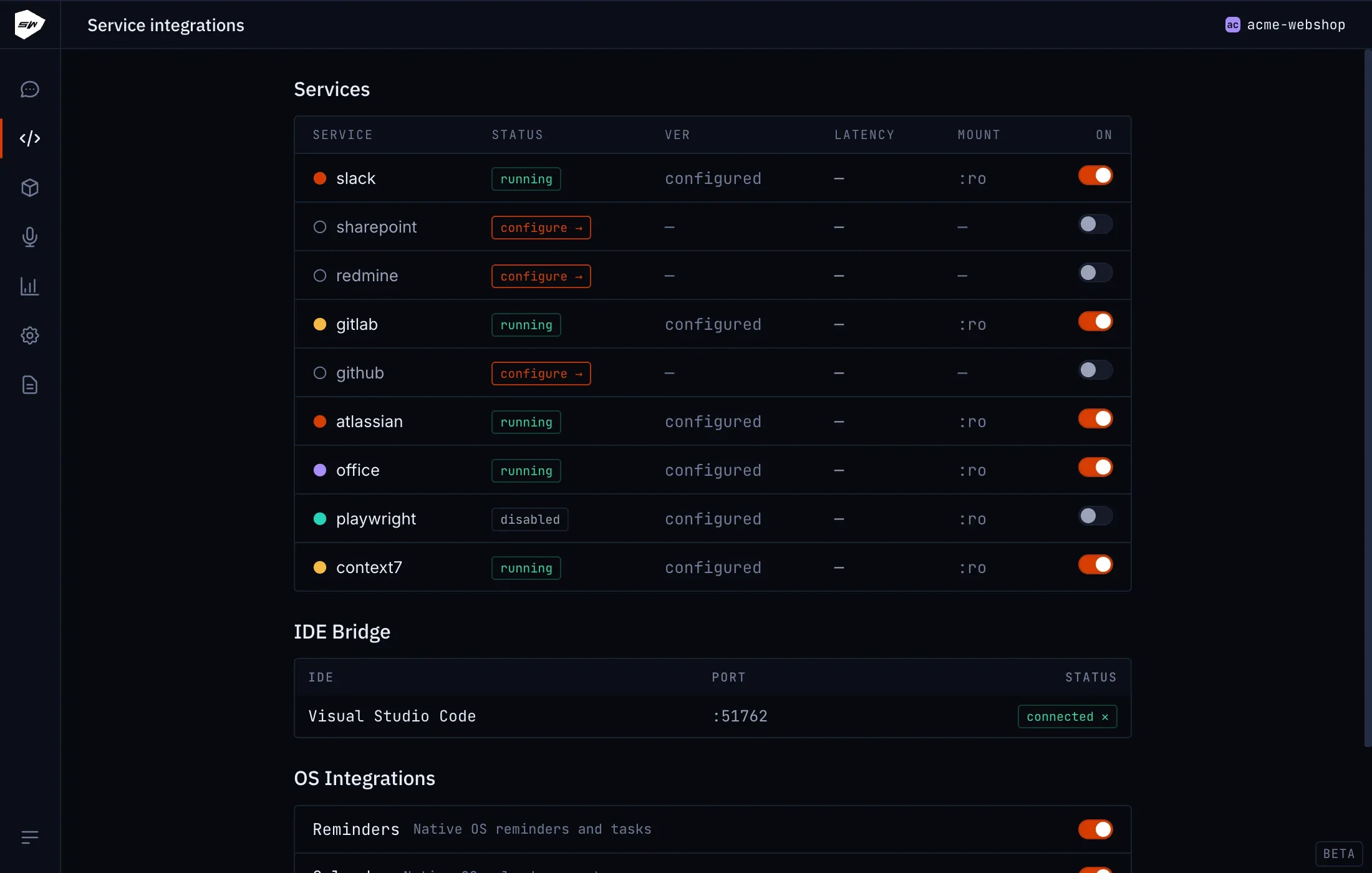
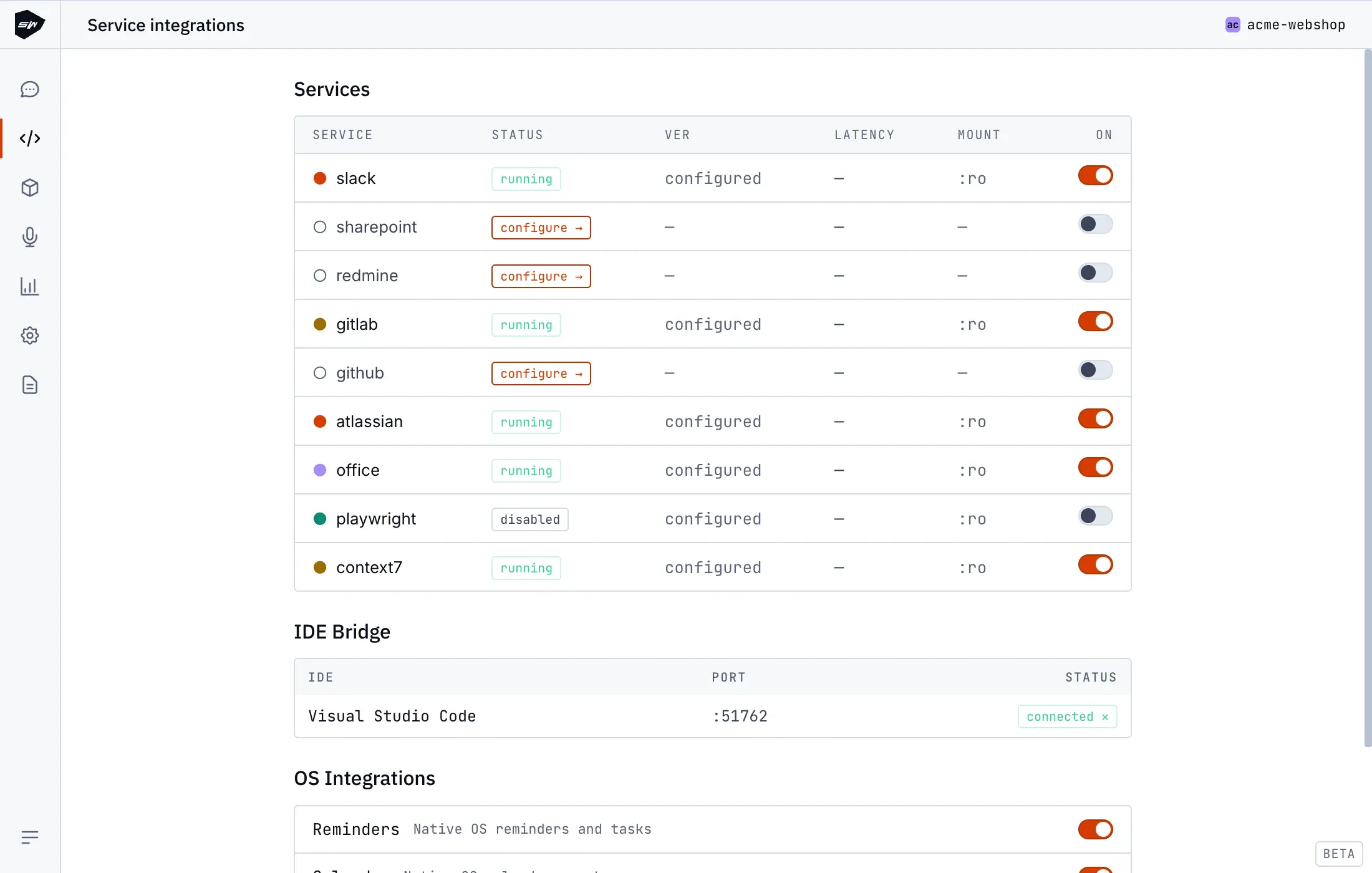
Section titled “Configuration”- Open your project in the Desktop application and navigate to Integrations → Slack.
- Click Sign in with Slack to initiate OAuth authorization in your default browser.
- Select your target Slack workspace and approve permissions.
- Once connected, restart workspace containers to initialize the worker.
Security boundaries
Section titled “Security boundaries”The integration requests user-delegated scopes only, preventing administrative modifications (channel creation, member invitations, or workspace setting edits). The worker is restricted to channels and conversations you are explicitly a member of. Consult Credentials management for additional security specifications.